
 01
01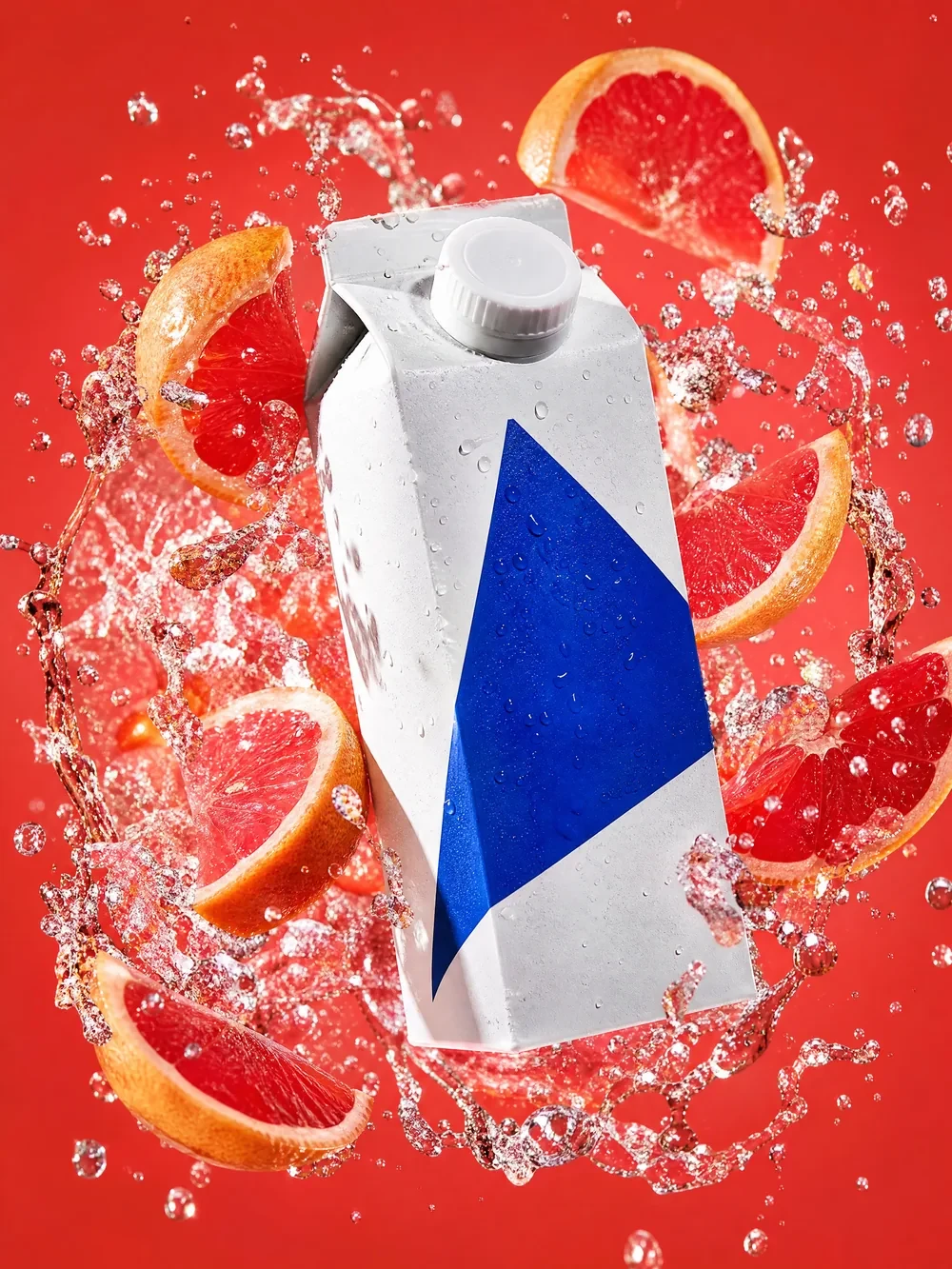
Reference image
Reference imagePRODUCT EDIT
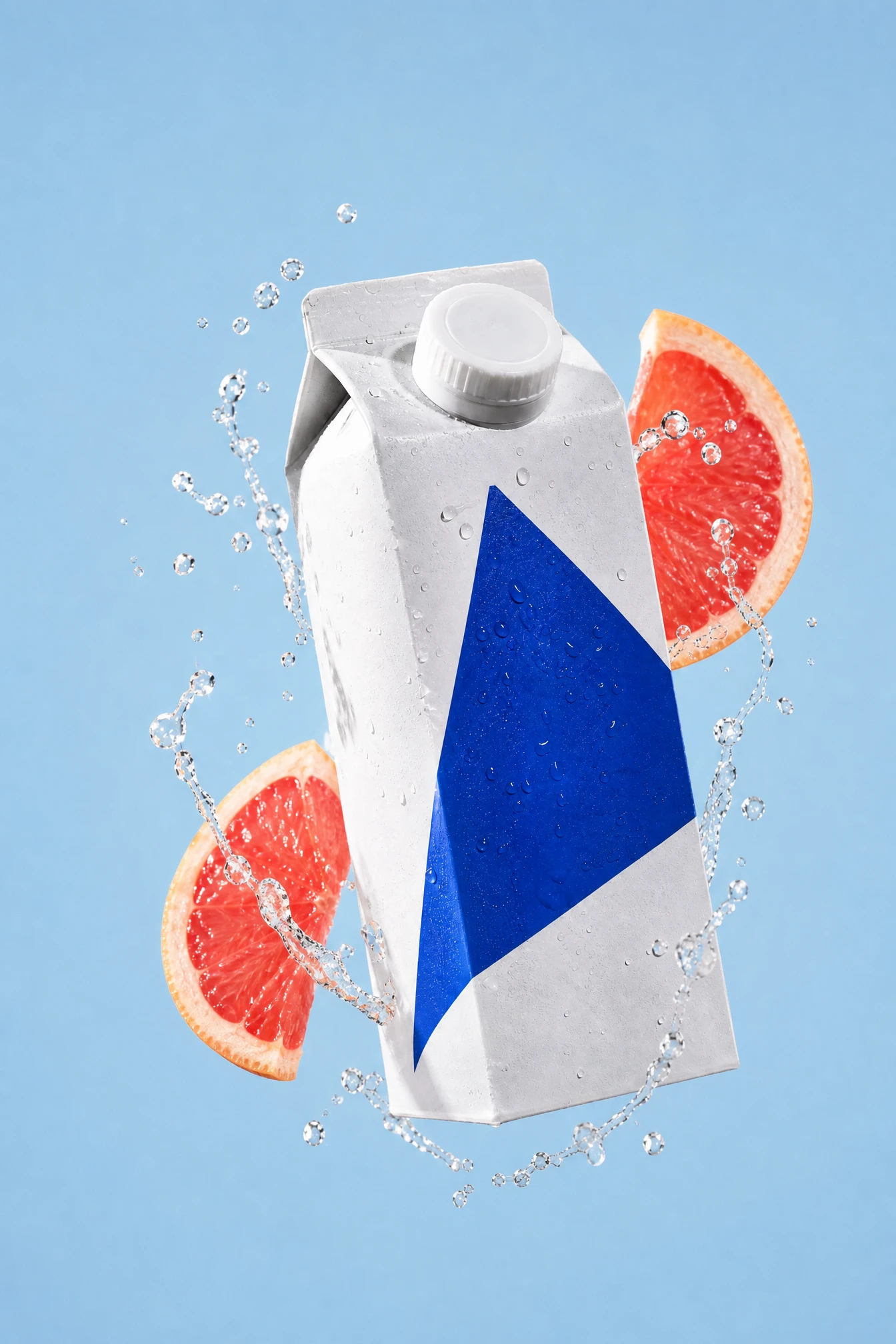
Keep the product. Rethink the setting.
GPT Image 1.5 · Edited result
Prompt used
Upload your reference after entering the studio. This fills the prompt without generating automatically.
Reference imageOpenAI · GPT Image 1.5
Make the next edit closer to your idea.
Start with a written idea or bring a reference image. Explore product compositions, poster lettering and visual variations with GPT Image 1.5. Separate the details to preserve from the changes you want, then choose a quality setting for the task.
Available options and estimated credits are shown in the studio.
FIND YOUR CREATIVE DIRECTION
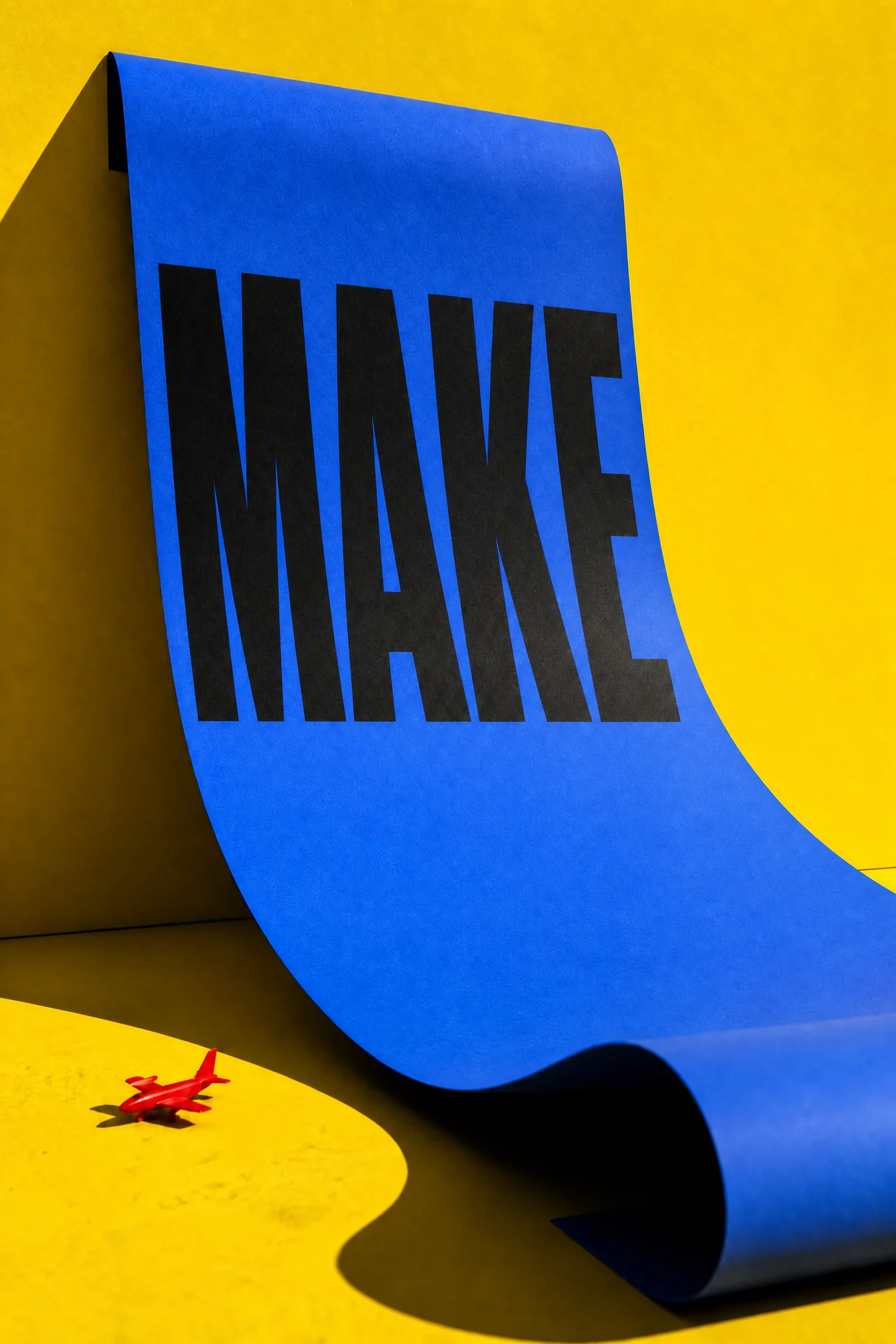
Explore four completed GPT Image 1.5 edits. Each result is paired with its original image and the exact prompt used, so you can compare the requested change and the details that stayed. Open the original when you want to try the same brief in the studio.
01Reference image
Reference imagePRODUCT EDIT
GPT Image 1.5 · Edited result
Upload your reference after entering the studio. This fills the prompt without generating automatically.
Reference image02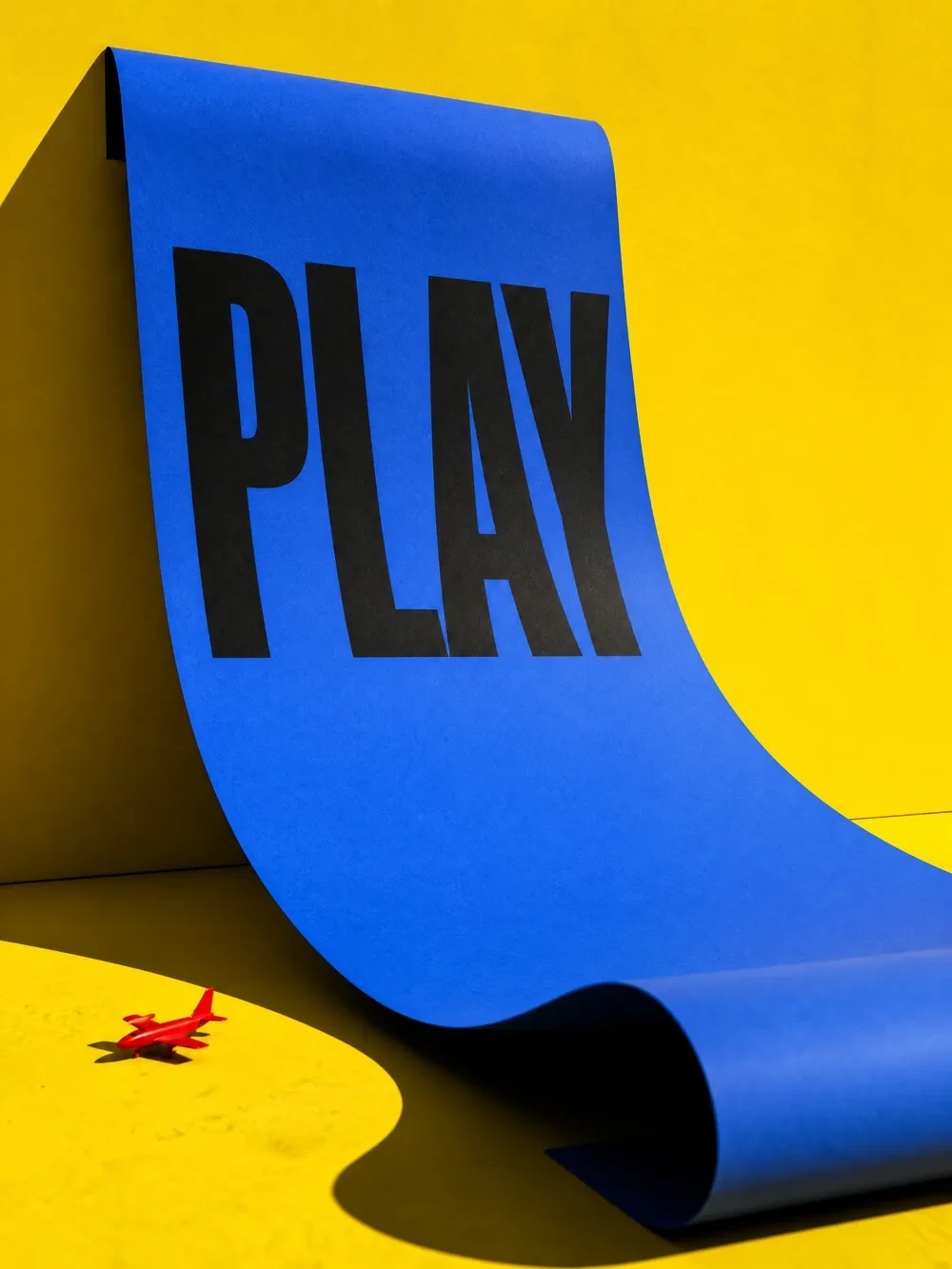
Reference image
Reference imagePOSTER LETTERING
GPT Image 1.5 · Edited result
Upload your reference after entering the studio. This fills the prompt without generating automatically.
Reference image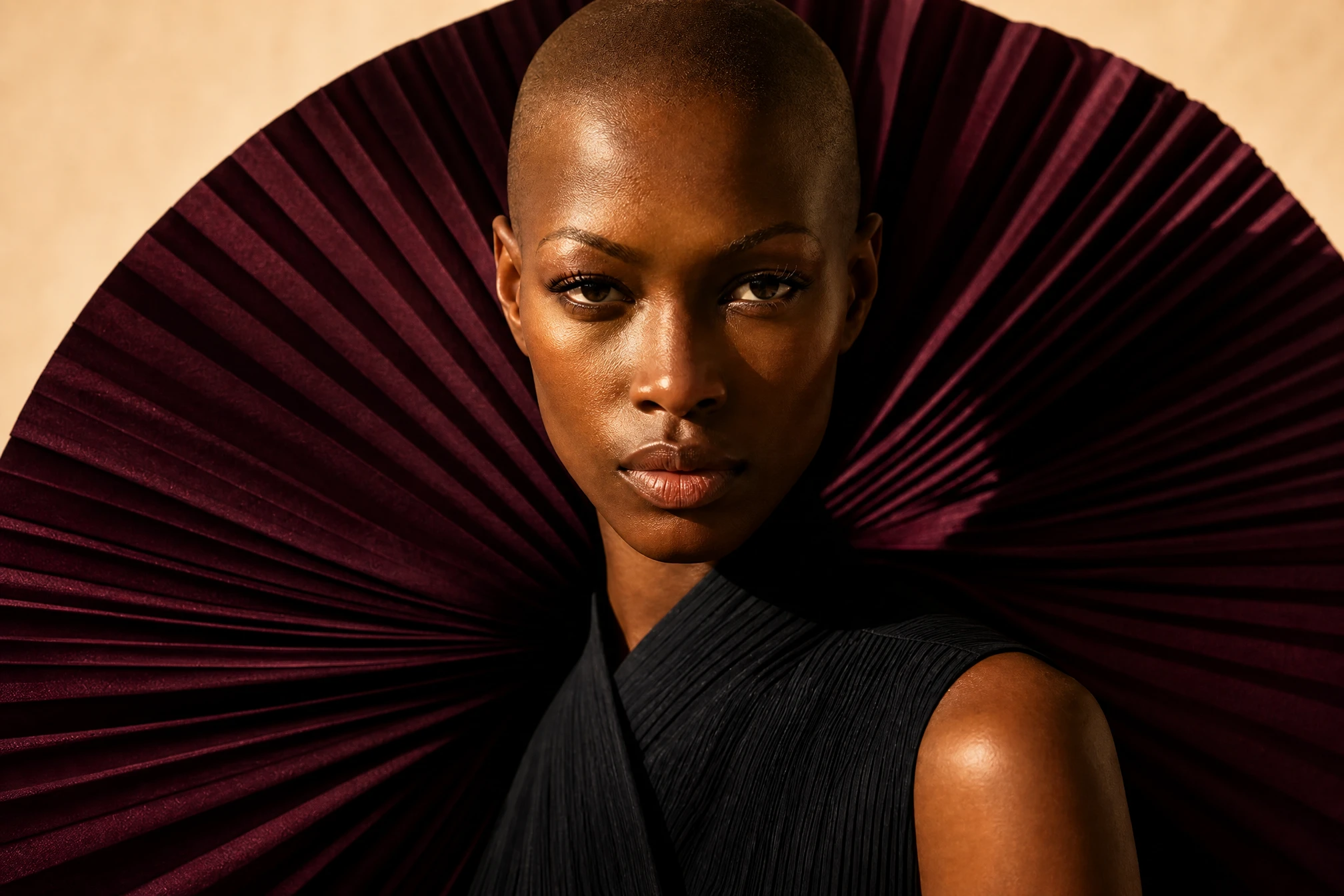 03
03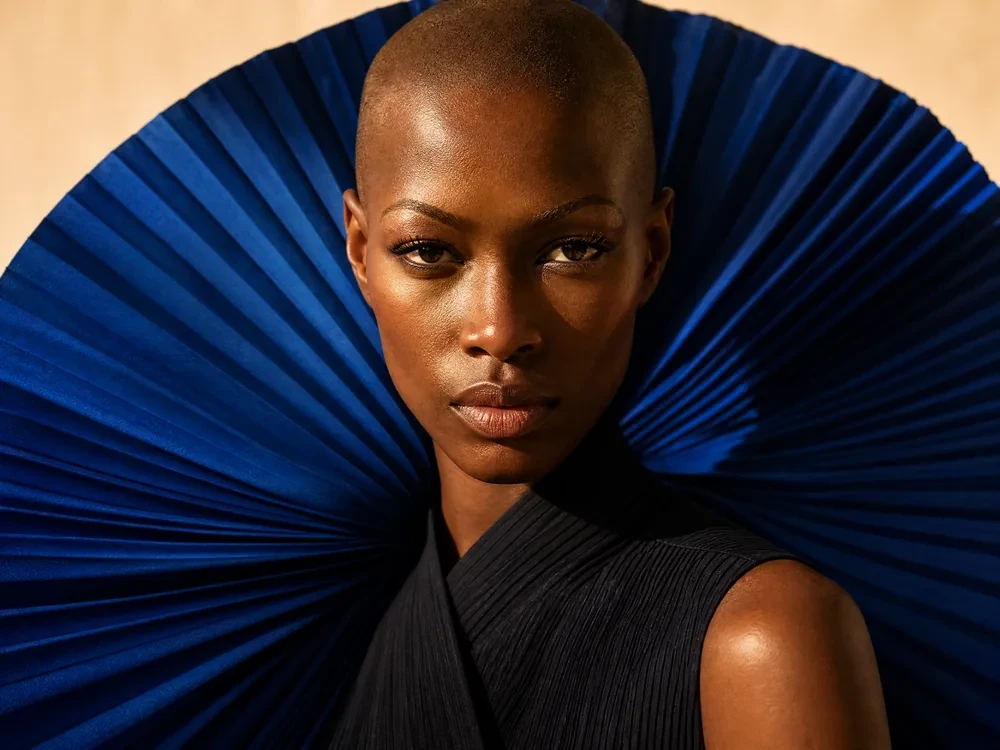
Reference image
Reference imagePORTRAIT DIRECTION
GPT Image 1.5 · Edited result
Upload your reference after entering the studio. This fills the prompt without generating automatically.
Reference image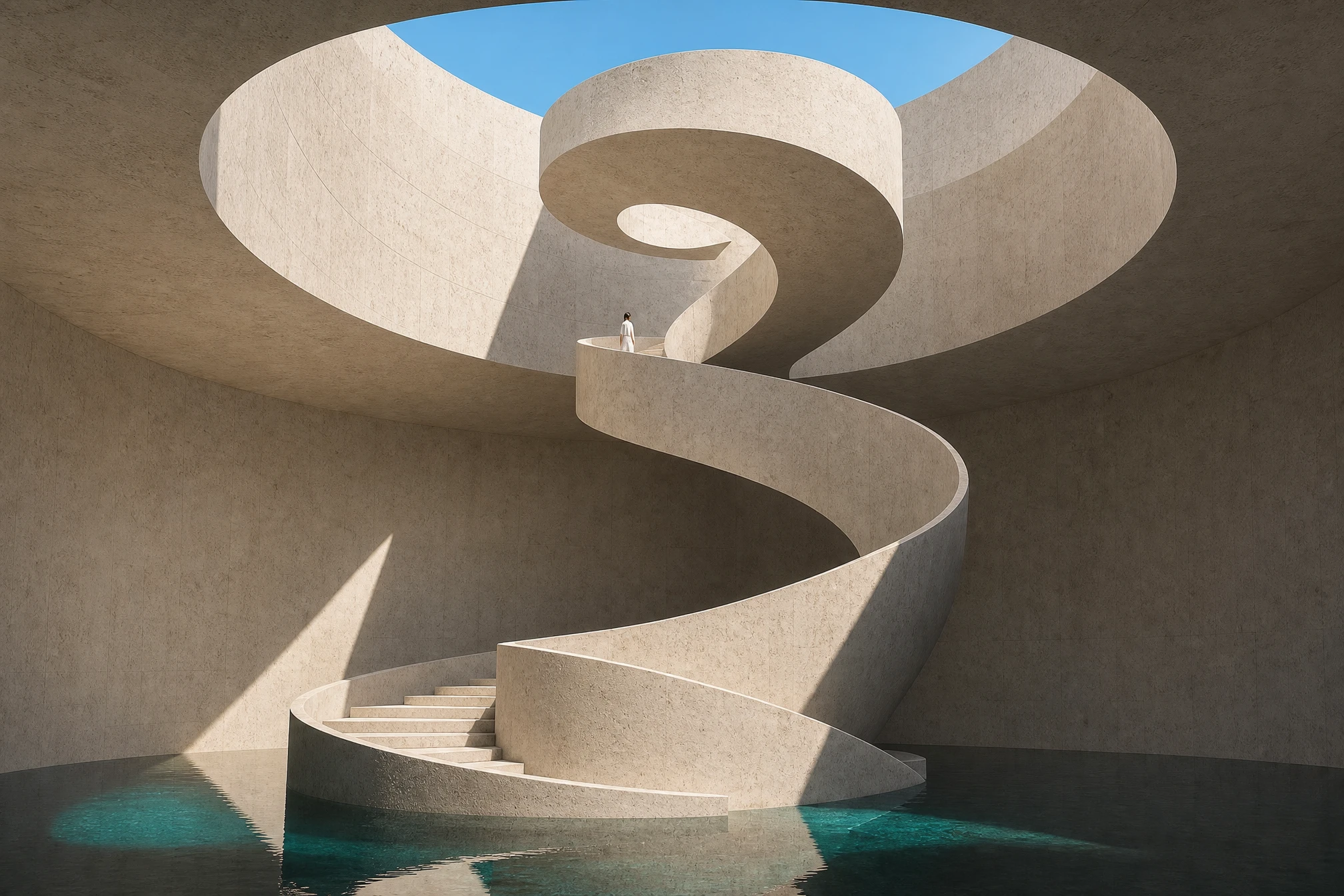 04
04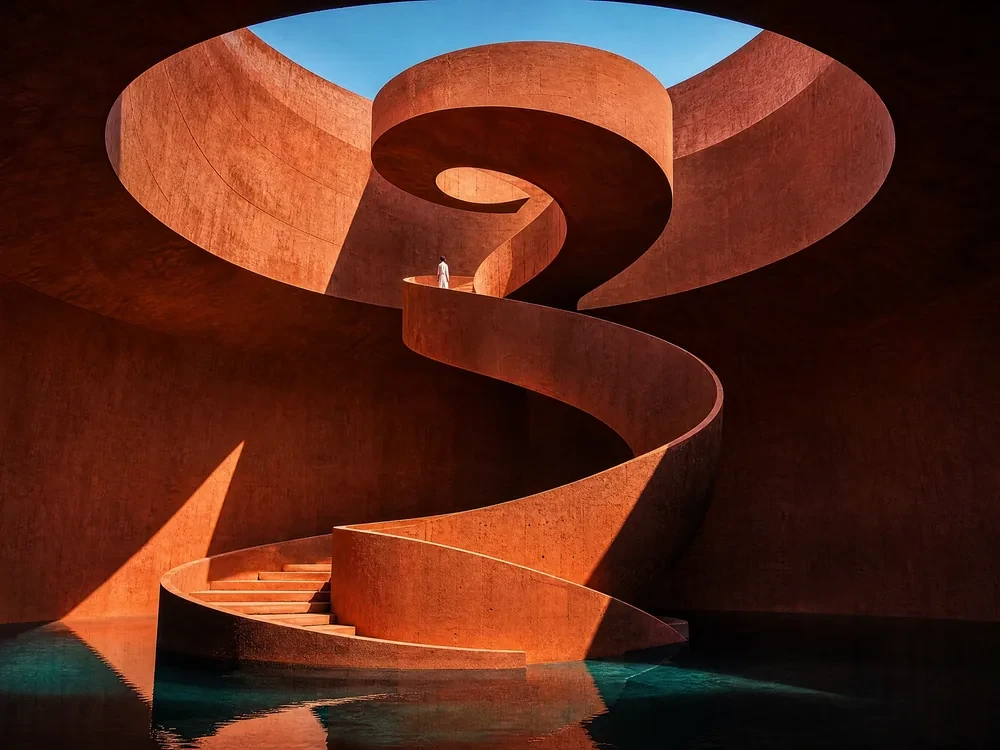
Reference image
Reference imageARCHITECTURAL CONCEPT
GPT Image 1.5 · Edited result
Upload your reference after entering the studio. This fills the prompt without generating automatically.
Reference imageMEET THE MODEL
GPT Image 1.5 is an OpenAI image generation and editing model with the official identifier gpt-image-1.5. That is the identifier configured for this Ruxa entry; the retained /gpt-image-1 page address does not make it version 1.0. Use written instructions to explore a composition, or combine reference images with an editing brief. Because the model generates a new result, inspect how well important details survive each edit.
Read the official model documentationTURN YOUR IDEA INTO A CLEAR BRIEF
Separate what should change from what should stay. Make one clear revision first, then build on it so you can see the effect of each instruction. Without a reference, describe the subject, composition and light to start a new image.
Upload images with complete subjects and visible detail. Give each reference a specific role and follow the upload limits shown below. Blurry screenshots provide less reliable detail for lettering and product features.
“Change the red background to pale blue” is easier to evaluate than “make it premium.” For lettering, put the exact wording in quotation marks and keep it separate from descriptions of visual style.
Mention the subject shape, facial expression, viewpoint or lighting direction. Prioritise the few details that matter most. A completely new composition and an unchanged image are conflicting instructions.
Inspect lettering, edges, hands and product structure at a useful viewing size. Confirm that the change works before revising another part. A higher quality setting does not replace this review.
IN THE RUXA STUDIO
Controls reflect the current integration
A LITTLE MORE CLARITY
This entry is configured as GPT Image 1.5 with the identifier gpt-image-1.5. The existing /gpt-image-1 address remains available for continuity. Check the model name displayed in the studio when making your selection.
Yes. The reference is optional in the current configuration. Describe the subject, setting, framing and light to create a new image. The image-dependent editing briefs on this page require the corresponding upload first.
The current reference limit is shown in the settings below and in the studio upload control. Both read the same model catalog. Assign each image a clear role instead of uploading conflicting references.
Start with the studio default to evaluate the composition. Compare a higher available setting when finer detail matters, and review the updated credit estimate before submitting.
You can request a text edit, but check spelling, spacing and line order in the result. Clearly separate wording to retain from wording to replace. Break long copy into manageable sections and proofread every word of the final image.
You can describe a local change and ask to preserve the rest, but identical pixels are not guaranteed. Recheck any detail that must remain exact in the returned image.
Yes. The four results are actual GPT Image 1.5 edits. Each includes its original input and exact generation prompt, covering background changes, poster lettering, portrait colour and architectural materials.
MAKE SOMETHING YOURS
Pick a direction. Write your first prompt.
Open image studio