
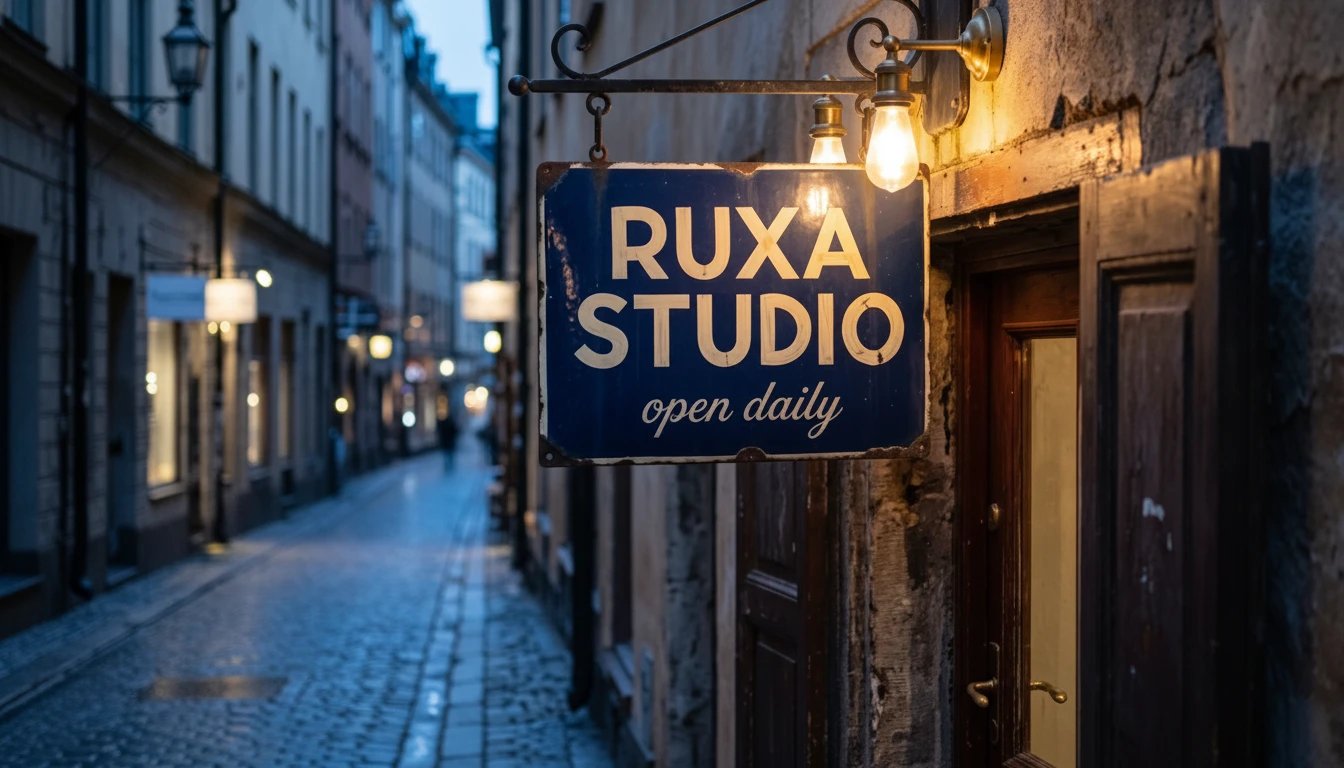
 01
01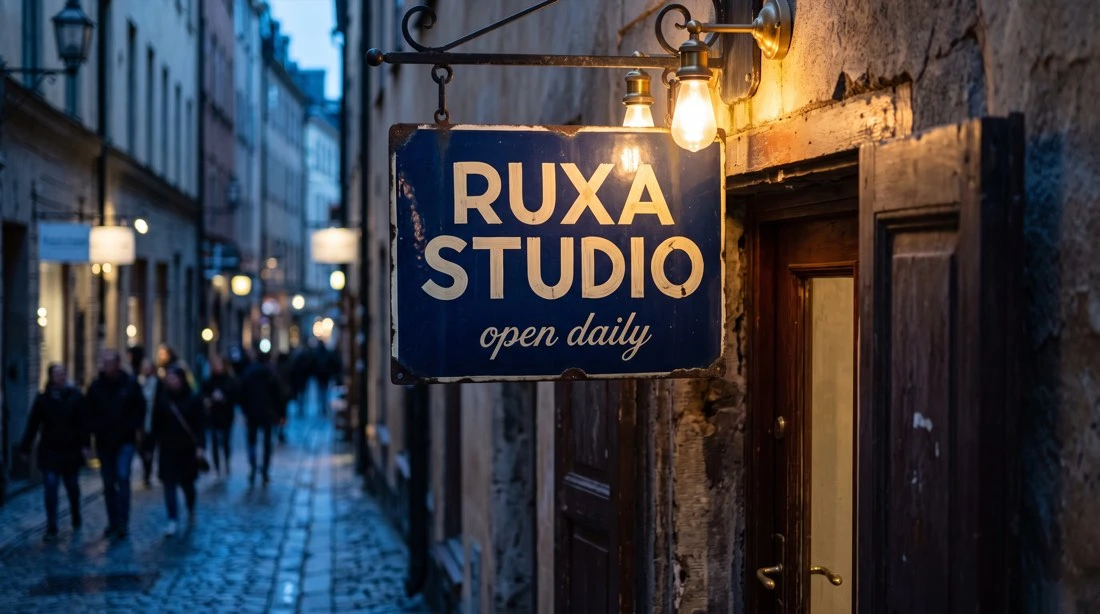
Reference image
Reference imageEdit a reference
Change the weather, keep the framing
Nano Banana · Edited result
Prompt used
Upload your reference after entering the studio. This fills the prompt without generating automatically.
Reference imageGoogle · Gemini 2.5 Flash Image
Start with an idea. Keep what you like.
With no starting image, describe the scene you want to see. With an image you already like, name what should stay and what needs changing. A useful Nano Banana workflow begins with a clear direction, then develops the chosen material through specific, manageable requests.
Available options and estimated credits are shown in the studio.
FIND YOUR CREATIVE DIRECTION
See completed Nano Banana edits beside their originals: a rainy street, warmer light and a watercolour interpretation. Each example includes the exact prompt used. Upload a reference under Nano Banana in the studio to start editing; no separate Edit model is needed.
01Reference image
Reference imageEdit a reference
Nano Banana · Edited result
Upload your reference after entering the studio. This fills the prompt without generating automatically.
Reference image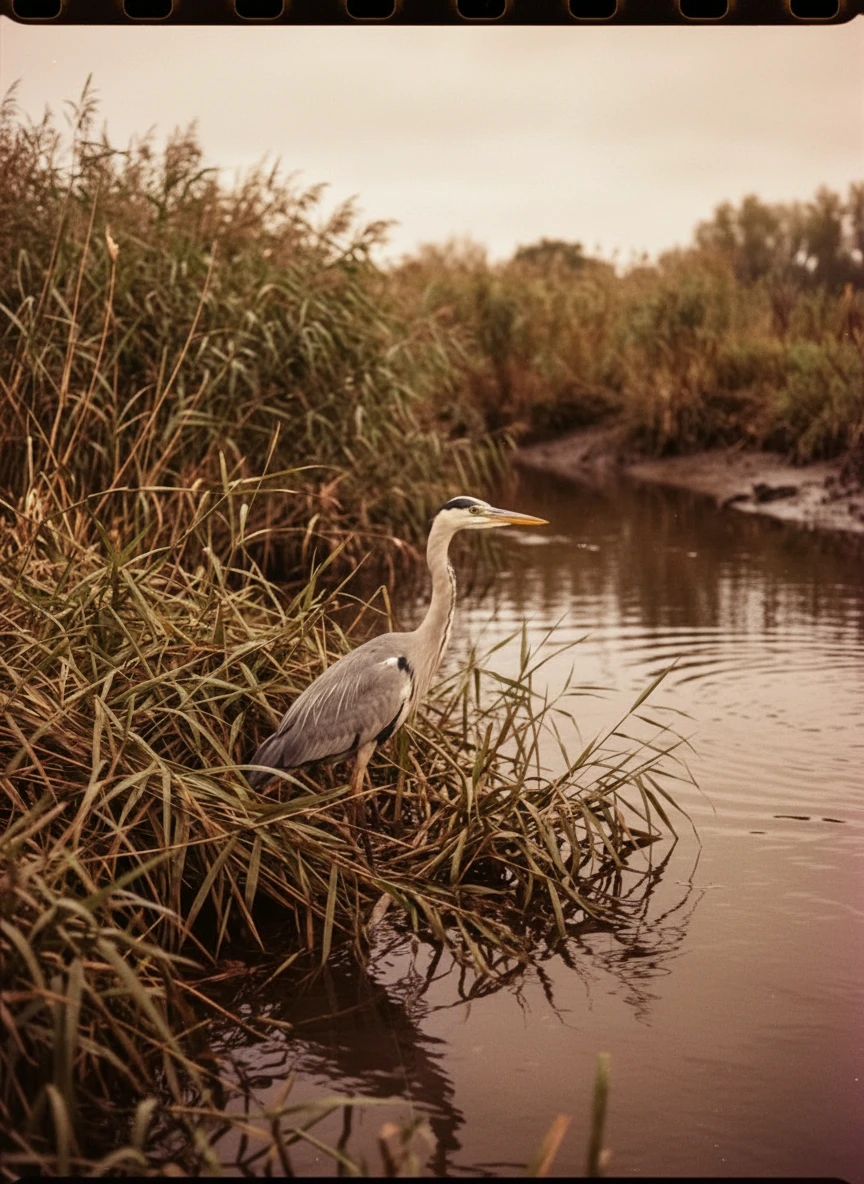 02
02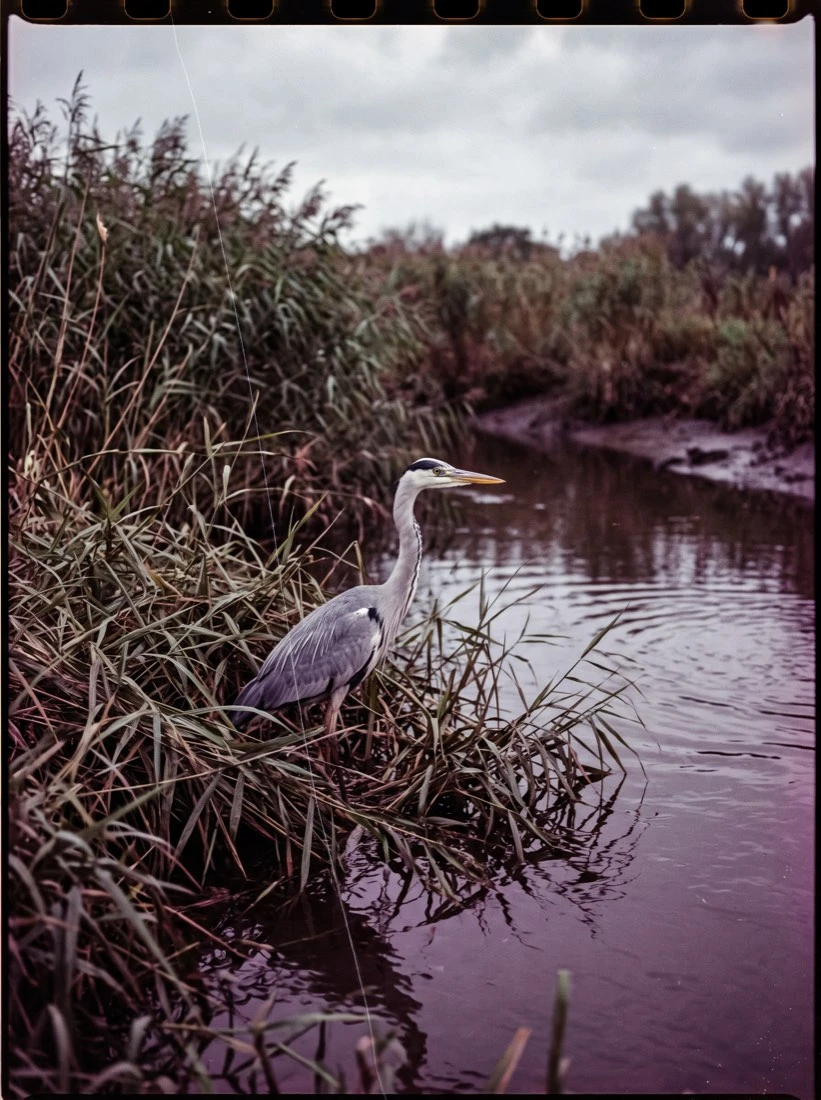
Reference image
Reference imageEdit the light
Nano Banana · Edited result
Upload your reference after entering the studio. This fills the prompt without generating automatically.
Reference image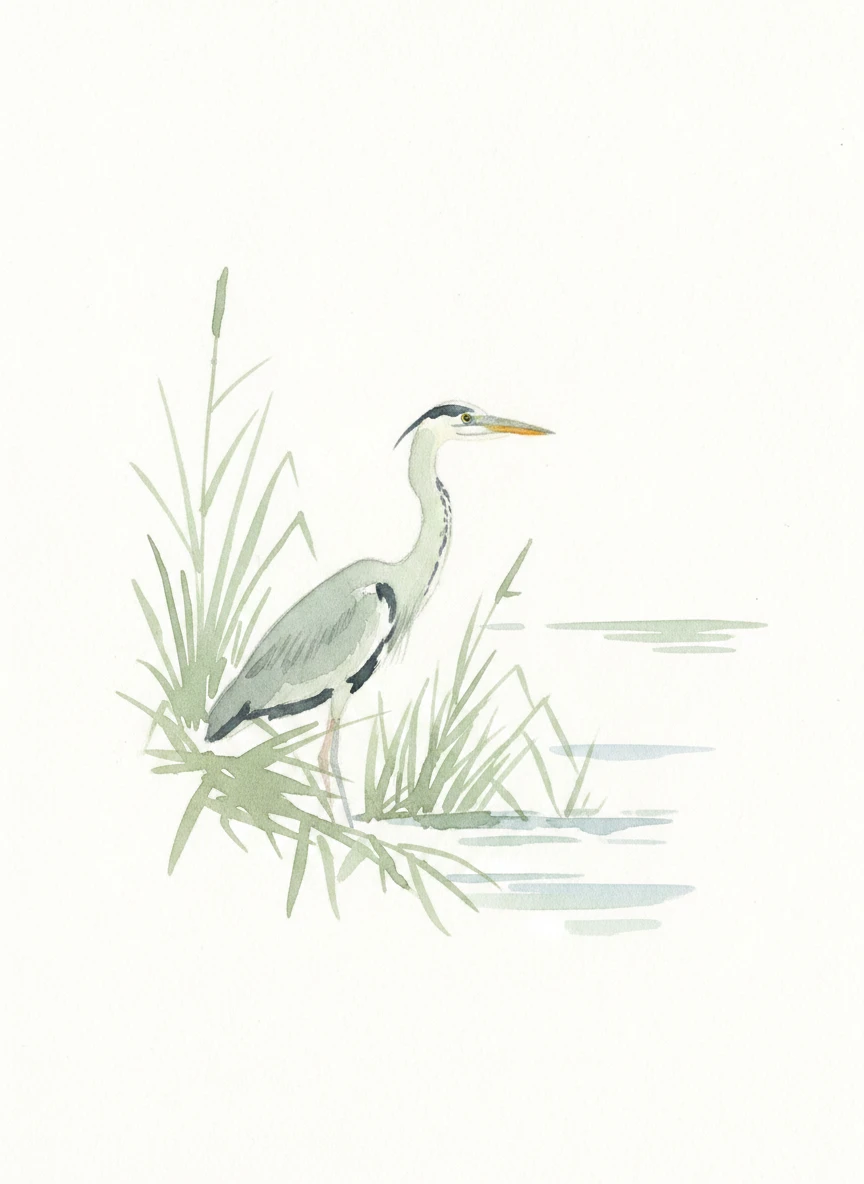 03
03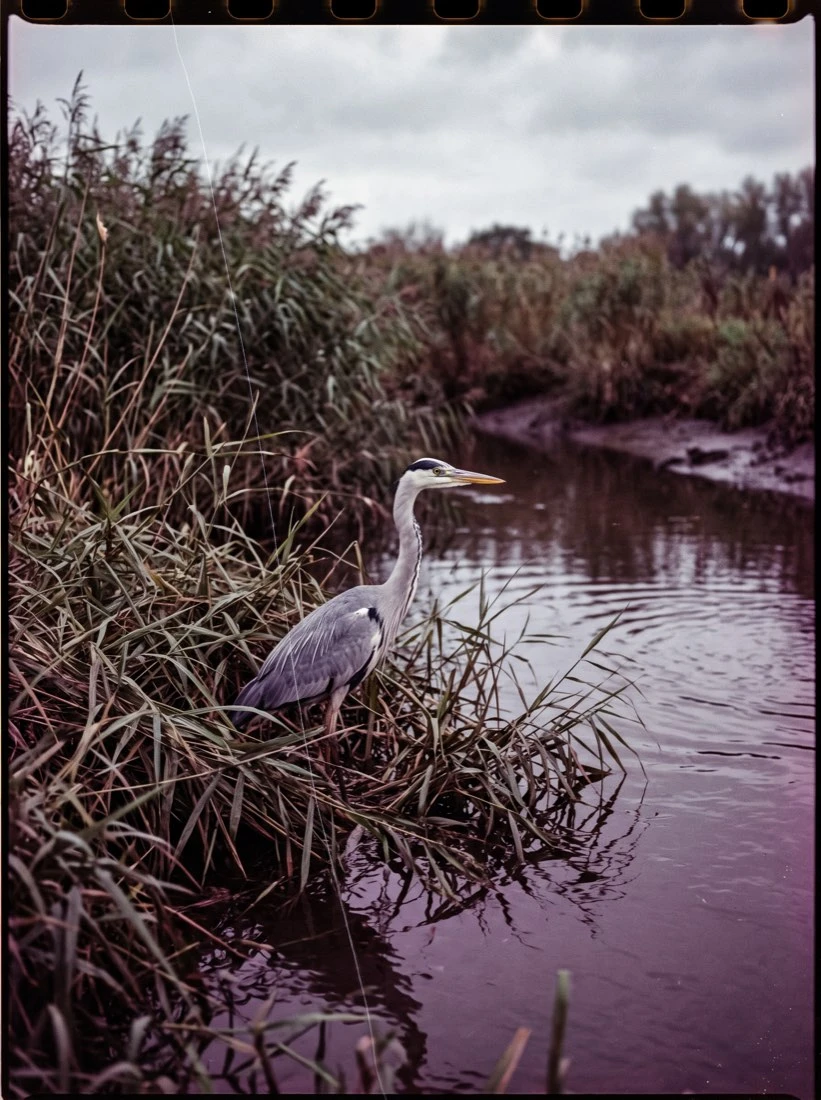
Reference image
Reference imageDevelop a visual style
Nano Banana · Edited result
Upload your reference after entering the studio. This fills the prompt without generating automatically.
Reference imageMEET THE MODEL
Nano Banana is Google’s name for Gemini 2.5 Flash Image, a model for image generation and image-based changes. Turn a written idea into a visual draft, or change an existing image’s background, light or style. In Ruxa, keep Nano Banana selected: without a reference you create a new image; uploading a reference automatically selects the available editing mode.
Read the official model documentationStart from a description when you have no reference image. If you already have an image, open the editing entry, upload it and describe the change.
TURN YOUR IDEA INTO A CLEAR BRIEF
You do not need to solve every detail in one request. Establish the subject and composition, then choose one thing you actually want to improve.
Keep Nano Banana selected. Write a prompt to create a new scene, or upload an image to edit it. For a previous result, select the image you want to continue modifying so the intended reference is attached.
Put preservation instructions first: the pose, product silhouette or camera position. Then describe the background or lighting that may change. Refer to visible objects instead of a vague request to keep the original feeling.
Replace the background before exploring another style or palette. Check subject edges, proportions and shadows. Changing pose, clothing and camera angle together makes it harder to understand which instruction caused an unwanted result.
Download important results. Before another edit, confirm that the selected reference is the version you intend to continue. Reusing its text prompt alone does not automatically attach the previous image as an editing input.
IN THE RUXA STUDIO
Controls reflect the current integration
A LITTLE MORE CLARITY
Yes. Keep Nano Banana selected in the studio. With no reference, your prompt starts a new image. Add a reference or select an existing result to continue editing; the available editing mode is selected automatically.
No. Editing belongs inside Nano Banana. Upload an image and describe the change; you do not need to find or learn a separate Edit model. Check the reference thumbnail before submitting.
The model regenerates the image; a preservation request is not a pixel lock. Use a clearer reference, reduce simultaneous changes, explicitly describe the silhouette and pose to retain, and inspect each result for unwanted differences.
An edit needs the previous image as a reference. Reusing a prompt only fills in its text. Check the reference thumbnail and selected model before submitting so a planned correction does not become an unrelated new scene.
You can enter Chinese in the studio. Use concrete descriptions of objects, positions and light. Put any wording that must appear in the image in quotation marks and proofread the result; the prompt language does not guarantee accurate typography.
There is no guarantee. References help describe the target, but faces, marks, dimensions and local textures can still change. Compare product images with the actual item and use conventional editing for details that require exact fidelity.
This page covers Gemini 2.5 Flash Image. Nano Banana 2 and Pro have separate model guides. Choose around references, output settings and your own small test; do not assume Pro’s 4K controls also belong to this model.
MAKE SOMETHING YOURS
Pick a direction. Write your first prompt.
Open image studio